GardenBinder Guides
Moving from PictureThis to GardenBinder (Without Retyping a Plant)
Mea Cara · September 29, 2026 · 5 min read
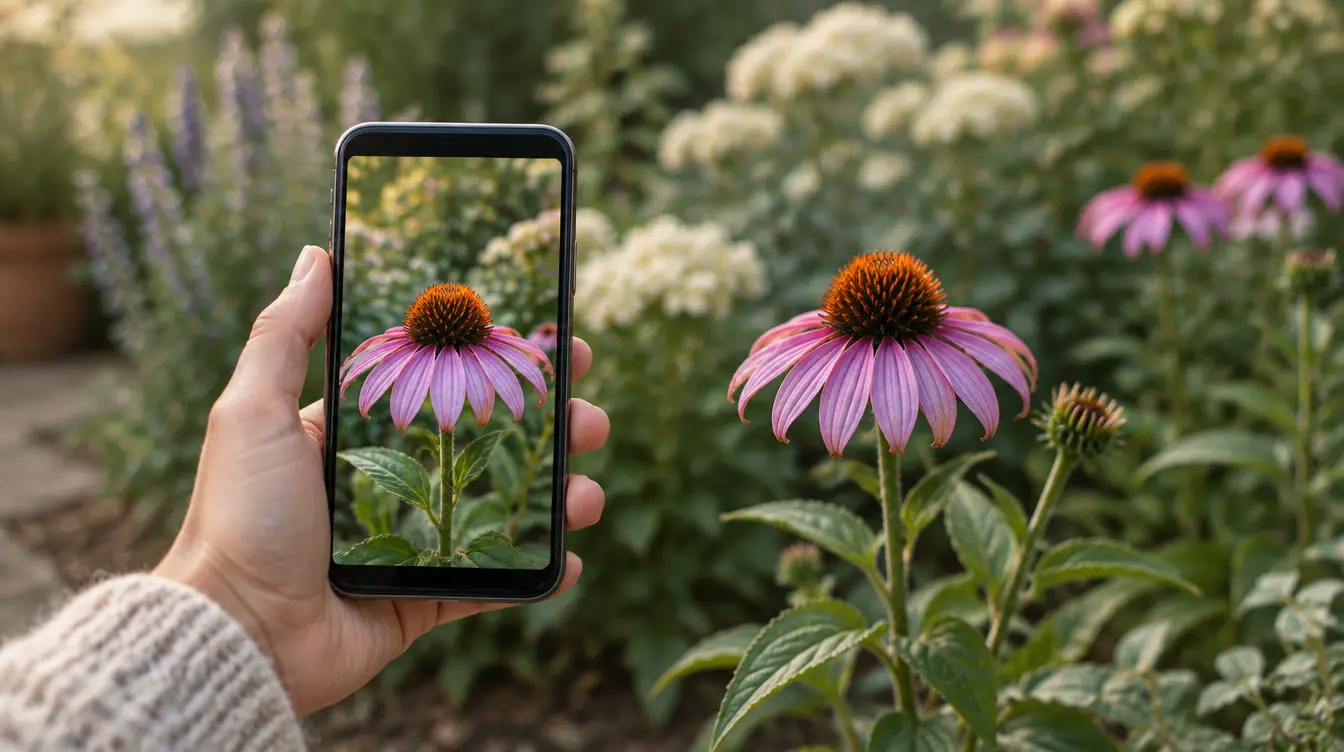
PictureThis does one thing remarkably well: you point your phone at a leaf and it tells you what you are looking at. For a lot of gardeners it is the first app that ever made a plant list feel possible, because the list built itself, one snapshot at a time. If you have been using it for a season or two, you probably have dozens of plants in there, some of them with care reminders attached.
The trouble starts when you want that list to become something more — a record of where each plant went, how it did, what you changed. That is a different job, and it is the job GardenBinder was built for. This is how to move without typing anything twice.
What PictureThis is good at
Credit where it is due. The identification is fast and, for common garden plants, usually right. The diagnosis feature can be a helpful first opinion on a sick leaf. The care tips are generic but sensible. If all you want is a name and a watering suggestion, it is hard to beat.
What it is not is a journal. There is no bed, no map, no season, no way to say "this hydrangea, in this corner, pruned on this date, bloomed on that one". Photos live with the identification that produced them, not with the plant's life.
What you can and can't take with you
As of this writing, PictureThis has no export. There is no button that hands you a spreadsheet of your collection, and its subscription terms do not change that. What you have is what you can see on the screen: the plant names (common and Latin), the photos you took, and any notes or reminders you attached.
That sounds worse than it is. The list on the screen is enough, because GardenBinder can read it off a screenshot.
Step by step
- Screenshot your collection. Open your plant list in PictureThis and take a screenshot of each screenful, scrolling between shots so every plant appears at least once. A list of forty plants is usually four or five screenshots. Names are what matter; the thumbnails are nice but not required.
- Open GardenBinder → Settings → Bring your garden in. You will see three ways to start: a spreadsheet, a pasted list, and screenshots of your old app. Choose the screenshots.
- Pick your screenshots. GardenBinder reads up to six at a time, so a long collection goes through in two batches. AI reads every plant name off the pictures and writes each one a starting record: kind, sun and water needs, a short care profile. Your first ten AI imports are free on the Free plan, and each batch of screenshots counts as one.
- Review the list before anything is saved. Every plant arrives as a draft you can rename, retype, or untick. Anything that matches a plant already in your garden is flagged as a possible duplicate. Nothing is written until you confirm.
- Save, then walk the garden. Now the useful part: open each plant and tell it where it lives — an area, a bed, or nothing at all if your garden is a flat list. Add the photo you like best from your camera roll. That is the moment the record stops being a name and starts being a plant.
If the screenshots do not read cleanly — a dark theme, a tiny font, a list of Latin names only — the pasted-list route is the fallback. Type or copy the names, one per line, into the paste box. AI fills in the care details the same way, and if you have used up your free parses, the names still come in and you fill the rest in later.
What to check after the import
- Names that came through as the Latin binomial. PictureThis often shows both; the AI usually picks the common name, but check the ones you know by something else. Rename freely — the scientific name is kept alongside.
- Plants you no longer have. A collection built by pointing at things tends to include the neighbour's maple and a weed you were curious about. Untick them during review or archive them afterwards.
- Quantities. Your "Tomato" in PictureThis may be six plants in the ground. Set the count, or add each variety as its own record if you want to compare them at harvest.
- Care reminders. These do not transfer. GardenBinder builds its care schedule from the plant's own record, so open a plant, check the suggested rhythm, and adjust it to how you actually garden.
Keep PictureThis for what it's good at
You do not have to choose. Plenty of gardeners keep an identification app on the phone for the mystery seedling and keep the garden's record somewhere that remembers. GardenBinder can identify a plant from a photo too — the first three are free — but the point of moving is the part that comes after the name: the bed it went in, the journal entry from the day it first flowered, the note about what you would do differently.
If you are starting from nothing but a list of names, that is fine. A journal that survives starts with dates and varieties, not with a perfect setup, and the comparison of garden journal apps lays out honestly where each one fits. GardenBinder is free to start, and the import takes less time than reading this did.
#switching #import #picturethis #gardenbinder